Product Comparisons Without the Guesswork

Our tech product comparisons explain desk power, USB-C connectivity, cable management, charging, and space-saving gear—focused on the differences that actually affect your setup.

Compare the technology first. Then compare the products.

TechRovix comparisons are built around compatibility, connectivity, dimensions, power, usability, and the trade-offs between different product types.

Featured Comparisons

Use these comparisons when two product types look similar but solve different problems.

USB-C Dock vs KVM Switch

Understand the difference between adding workstation connectivity and switching one set of peripherals between multiple computers.

USB-C Hub vs Docking Station

Compare portability, port selection, charging, display connectivity, and the kind of setup each is designed to support.

Monitor Riser vs Desk Shelf

Compare two ways to raise a monitor while adding organization or storage to a small workspace.

Cable Tray vs Cable Box

Compare open under-desk cable routing with enclosed cable-management storage and see which approach fits your power setup.

3-in-1 Charger vs Separate Chargers

Compare a single multi-device charging station with individual chargers for phones, earbuds, and watches.

What We Compare

Compatibility

Laptop ports, monitor requirements, operating-system support, and device-specific limitations.

Connectivity

HDMI, DisplayPort, USB-C, USB-A, Ethernet, charging, and the number of devices a product can connect.

Power & Charging

Power-delivery limits, charging outputs, included power requirements, and whether the setup can replace multiple chargers.

Size & Desk Space

Footprint, mounting method, storage capacity, cable routing, and how the product fits into a compact workstation.

Daily Usability

Installation, switching, cable access, portability, and the small details that affect everyday use.

A Simple Way to Use a Comparison

1. Identify the job. What are you trying to accomplish?   2. Check compatibility. Confirm your laptop, monitor, and ports.   3. Compare the trade-offs. Look beyond the headline feature.   4. Choose for your actual desk. Dimensions, cable routing, power, and workflow matter.

One Laptop + Two Monitors

Start with display support, USB-C capabilities, resolution, refresh rate, and power delivery.

Two Computers + One Desk

Focus on KVM switching, number of displays, USB peripherals, and how the switch changes between hosts.

Small Desk + Cable Clutter

Compare under-desk trays, cable boxes, sleeves, drawers, and other ways to reclaim visible desk space.

Real Product Comparisons

These comparisons connect TechRovix’s researched product picks to real buying decisions. Specs and prices can change, so verify the retailer or manufacturer before purchase.
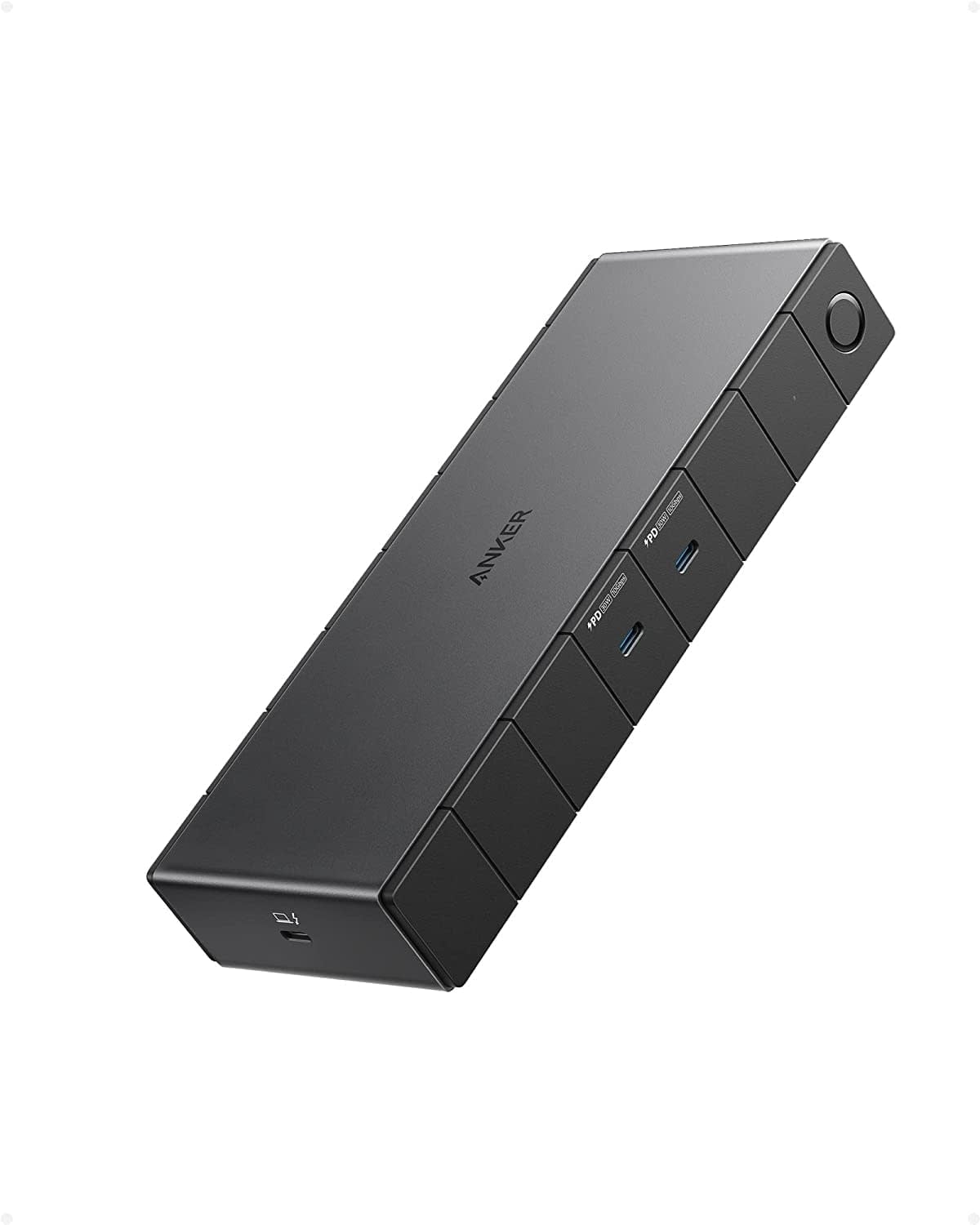
Anker 568 USB-C Docking Station Anker Prime DL7400 Docking Station

Anker 568 vs Anker Prime DL7400

Anker 568 is the simpler USB4-focused choice for a native dual-display workstation. Prime DL7400 adds DisplayLink-based triple-display flexibility and more ports for demanding multi-monitor workflows.

Best fit: Choose the 568 for a straightforward USB4 setup; choose the DL7400 when DisplayLink and extra display flexibility are the priority.

TESmart Dual Monitor USB-C KVM Anker 568 USB-C Docking Station

TESmart USB-C KVM vs Anker 568 Dock

The TESmart KVM is built around sharing monitors and USB peripherals between two computers. The Anker 568 is primarily a single-host workstation dock that expands connectivity and charging.

Best fit: Pick TESmart when switching between two computers is the job; pick Anker 568 when one laptop needs a clean docked workstation.
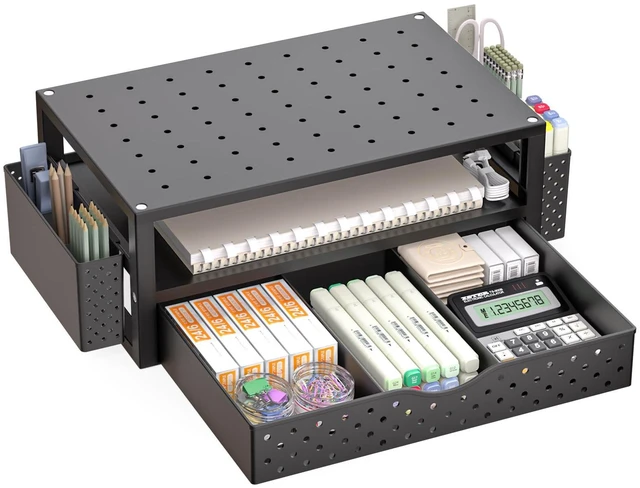

WALI Monitor Stand Riser with Drawer Grovemade Desk Shelf

WALI Monitor Riser vs Grovemade Desk Shelf

WALI focuses on affordable monitor elevation with a storage drawer. Grovemade takes the desk-shelf approach, combining monitor elevation with a wider premium storage surface underneath.

Best fit: Choose WALI for compact value and hidden storage; choose Grovemade when premium materials and a larger shelf footprint matter.
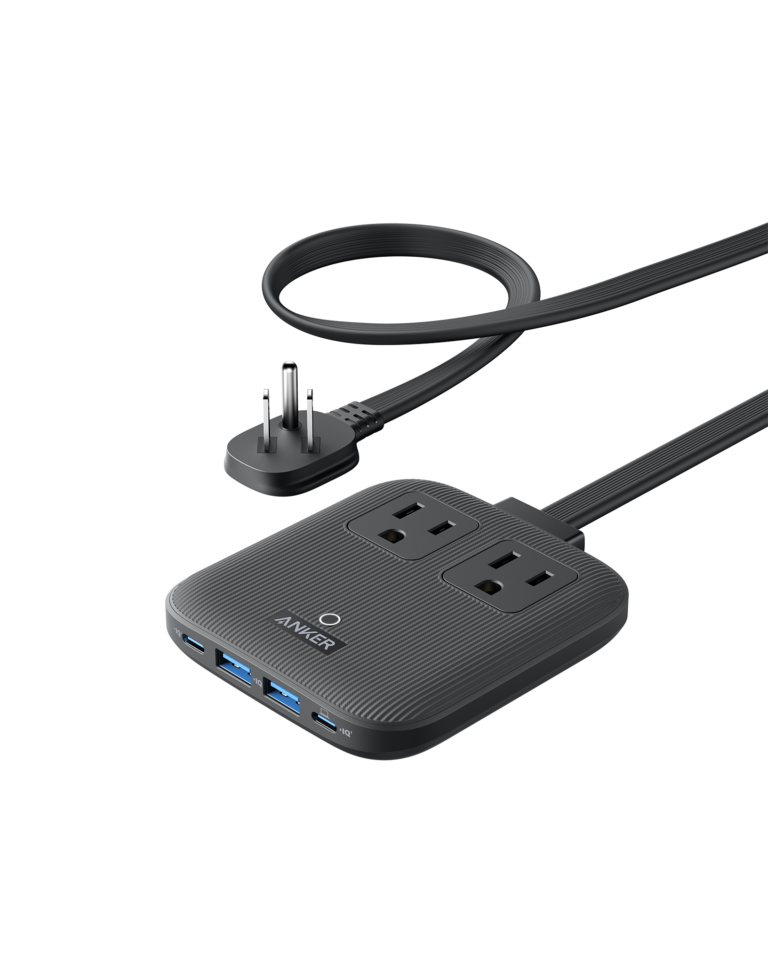
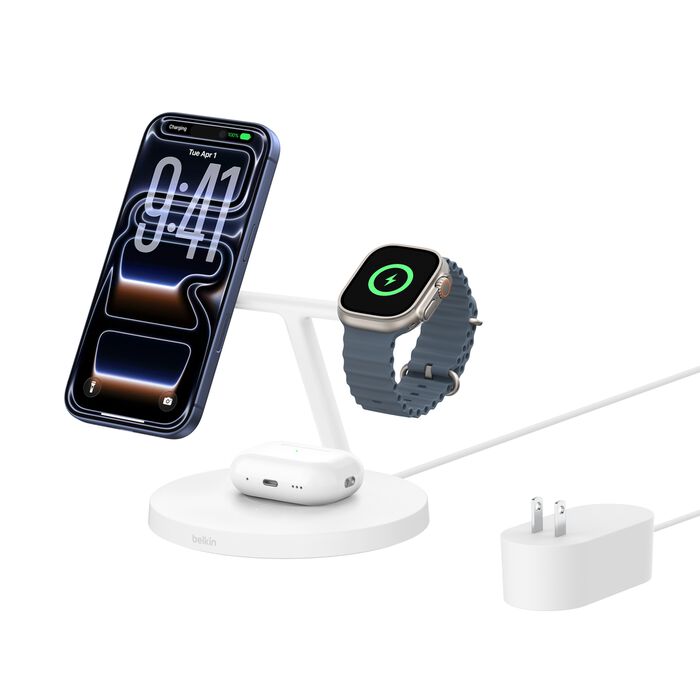
Anker Nano Charging Station 6-in-1 67W Belkin BoostCharge Pro 3-in-1

Anker Nano Charging Station vs Belkin 3-in-1

Anker Nano is a compact wired desktop charging station with 67W USB-C laptop charging. Belkin’s 3-in-1 is designed around convenient wireless charging for compatible phone, earbuds and watch setups.

Best fit: Choose Anker for USB-C laptop-and-accessory charging; choose Belkin for a cleaner wireless multi-device charging spot.

Comparison FAQ

Not necessarily. A product can cost more because it includes additional ports, higher power delivery, more display support, premium materials, or a different switching technology. The useful question is whether those features match your setup.
Display support can depend on the laptop’s hardware, operating system, graphics architecture, and the technology used by the dock. DisplayLink, for example, uses its own software on macOS and has specific setup requirements.
There is no single spec for every setup. Start with the number and type of displays, then check the laptop’s USB-C capabilities, power delivery, required ports, and operating-system support.
Look at capacity, dimensions, mounting method, desk compatibility, access to the power strip, and whether you prefer open routing or enclosed storage.

Know the Difference Before You Buy

Start with a buying guide when you need category-level help. Use comparisons when you are deciding between two specific approaches or product types.

Scroll to Top